MACOS MENU BAR TOOL
No terminal needed all your ports, right in your Bar.
Gooliya Port Bar lives in your menu bar, automatically scanning dev servers. Manage them with one click in the GUI — AI coding agents can query it too.
Works on Apple Silicon and Intel Macs · Lives in the menu bar · No Dock icon

See it in action
See how Gooliya Port Bar rounds up your scattered ports into the menu bar
Why Gooliya Port Bar?
The more projects you're running, the more of these you hit every day
Too many ports, too hard to track
With enough terminal windows open, it's easy to lose track of which port belongs to which project.
See everything from the menu bar
A menu bar app lists every port your Mac is currently listening on — no more switching windows to check.
Finding the URL means opening a terminal
Want to test something in the browser? You still have to dig through the command line to find the port number.
One click to open
Click any item in the list to open that port in your default browser, instantly.
Forgotten services pile up
As side projects multiply, old services get left running — sometimes even colliding on the same port without you noticing.
A color-coded tag flags them for you
Every entry shows how long it's been running — the tag turns orange past 3 hours, red past a day, so you don't have to keep track yourself.
Everything you need
10 features, and counting
-
Color-coded idle warningsNEW
Every entry shows its uptime — the tag turns orange past 3 hours and red past a day, so forgotten services stand out at a glance.
-
Built-in MCP server for AI agentsNEW
Ships a read-only MCP server so AI coding agents like Claude Code can check what's running, no GUI required.
-
Scan local ports
Automatically lists listening npm, Vite, Next, and Astro dev servers, plus Docker containers (Docker Desktop, OrbStack, Colima, and more).
-
Pin your favorites
Pin frequently used ports to the top of the list so you don't have to scroll to find them.
-
Rename anything
Give any entry a name you'll actually recognize, instead of a raw port number or process name.
-
Open in your browser, one click
Click an entry to open that port in your default browser — no need to type a URL.
-
Clear everything at once
Stop every listed service in one click, with a confirmation dialog before anything closes.
-
Automatic rescanning
Rescans automatically when the window regains focus, or refresh manually anytime.
-
Launch at login
Optionally start automatically when you log in, so you never have to open it by hand.
-
Lives in the menu bar, not the Dock
Stays entirely in the macOS menu bar — no extra icon cluttering your Dock.
Quick start
Three steps and you're set
-
1
Download Gooliya Port Bar
Download the latest
.dmgfrom Releases, then drag Gooliya Port Bar into your Applications folder. The same file works on both Apple Silicon and Intel Macs. -
2
How to install
Drag Gooliya Port Bar.app into the Applications folder, then double-click to open it. The first time, macOS will ask you to confirm — go to System Settings → Privacy & Security and click Open Anyway, then confirm with your password or Touch ID. You won't be asked again after that.
See the install screenshots
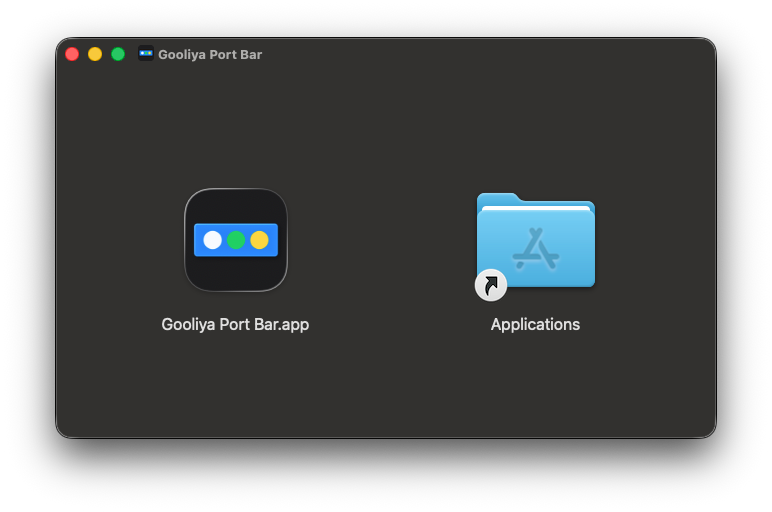
Drag into Applications 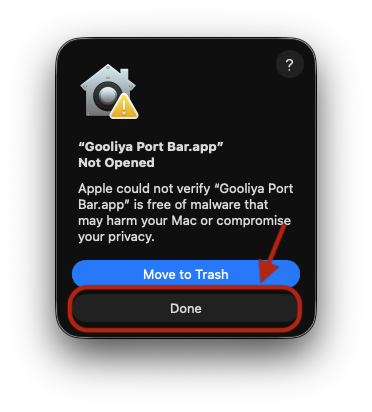
First-launch prompt 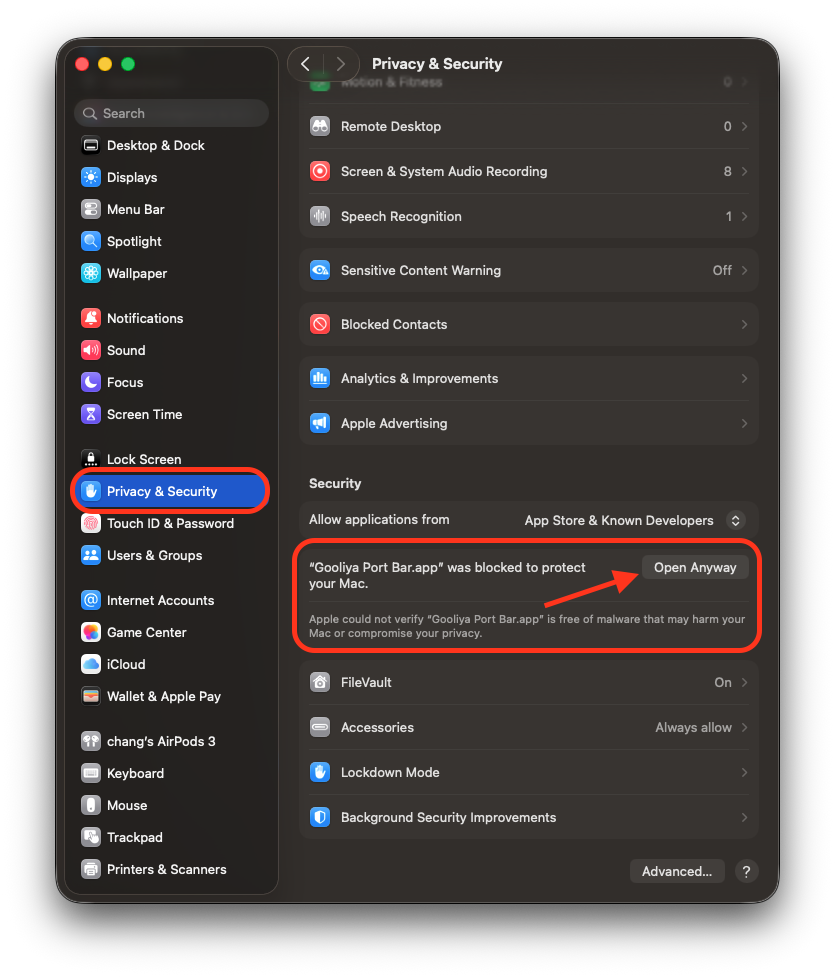
System Settings → Open Anyway 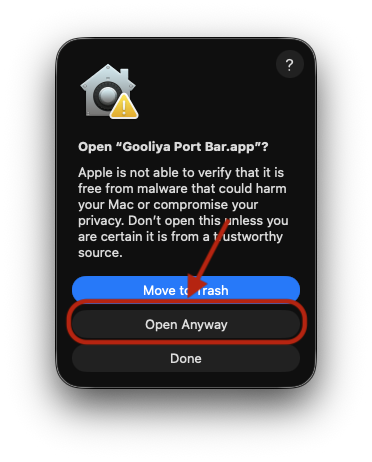
Confirm opening 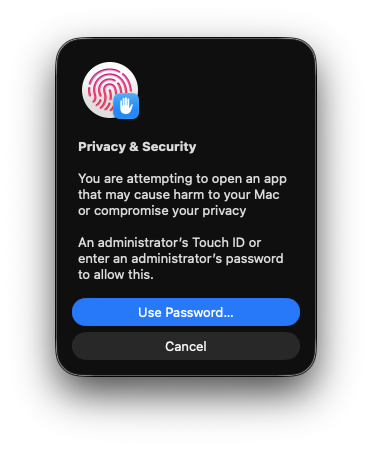
Password or Touch ID -
3
Start using it
Once open, the app lives in your menu bar. Local dev servers and Docker containers are scanned automatically — just click one to open it in your browser.
Only need it for an AI coding agent, no GUI app? @gooliya/port-bar-mcp is a fully standalone, read-only MCP server — no download, no install, just run:
npx -y @gooliya/port-bar-mcp
Recent updates
v0.3.2 · 2026-10-05
- Fix: Docker containers are now detected on OrbStack, Colima, and Podman — not just Docker Desktop. Port Bar reads running containers straight from
docker psinstead of guessing from the process name. - Change: All in-app text is now in English.
- New: Refreshed demo video and screenshot.
- MCP: The MCP server shares the same scanner, so it gets the Docker fix too.
v0.3.1 · 2026-09-15
- Change: The in-app update prompt is now explicit — it asks before installing.
- Change: Credits now show the English name.
- Docs: The
npxinstall command has its own highlighted code block.
FAQ
Two steps to feel confident this app is safe
The app is packaged with an ad-hoc signature (a codesign integrity signature), and the source is fully open under the MIT license. Here's how to check it yourself:
- Verify the hash: every Release includes a
checksums.txt— after downloading, runshasum -a 256 *.dmgin the same folder and compare the value to confirm the file wasn't tampered with. -
Have AI review the source: open it directly in ChatGPT, or copy the text below and paste it into Claude or another AI assistant for a quick scan.
This is Gooliya Port Bar, an open-source macOS app I found at https://port-bar.gooliya.com/.
Source code:
https://github.com/imsyuan/gooliya-port-bar
Built with Rust + Svelte, the Tauri framework. It lives in the menu bar, automatically scans local dev servers and Docker containers, and supports pinning, renaming, removing, and opening in the browser with one click.

Help me check whether there are any clear security issues in the source code — for example, secretly connecting to the network in the background to send data back, reading sensitive files such as SSH keys or browser data, or executing suspicious commands. Normal actions that are only triggered by the user actively clicking, such as opening a browser or opening the official website, don't count as issues — no need to list them.

Finally, just tell me in one sentence whether this app is safe or not. Only explain the reason if it's not safe.
Does it support Intel Macs?
Yes. The build is a Universal Binary — the same .dmg works on both Apple Silicon and Intel Macs, so there's no version to choose.
The menu bar icon is missing, or clicking it does nothing?
Gooliya Port Bar runs as a single instance and never appears in the Dock. Launching it again simply brings the existing window to the front instead of opening a new one. If you can't find the icon in the menu bar at all, check Activity Monitor to confirm the app is still running.
I don't see a dev server I started — what should I do?
Scanning relies on lsof to find ports in the LISTEN state, then identifies Node dev servers (vite, astro, next, tsx/ts-node, etc.). Docker containers are read directly from docker ps, so Docker Desktop, OrbStack, Colima, and others all work. The list rescans automatically when the window regains focus, or you can refresh manually — if a service started after the last scan, one refresh usually picks it up.
Does this site or the app send data anywhere?
The app itself never connects to the network — all scanning happens locally. This website uses Google Analytics for basic traffic stats and doesn't collect any other personal data.
How does an AI Agent (e.g. Claude Code) use it?
@gooliya/port-bar-mcp is a standalone, read-only MCP server. It talks stdio, opens no network port, and exposes only two query tools — list_ports and list_idle_ports — with no way to close or remove anything. No need to install the GUI app, and no Rust toolchain required — just run:
npx -y @gooliya/port-bar-mcp
How do I report an issue?
The source is public on GitHub under the MIT license — feel free to open an issue there with questions or ideas.